menu
Logo
  • Why azing?
  • Blog
  • Help
ENarrow_drop_down
  • DE
  • EN
Suche in Checklisten
search
azing Logo ENarrow_drop_down
  • DE
  • EN
  • Why azing?
  • Help
2sic
drive_folder_upload
  • homeChecklist Templates
  • south
  • fiber_manual_recordÖffentlich
  • south

folder_sharedSFTP

  • add Product Information
  • info Convert to information
  • insert_drive_file Convert to boilerplate
  • homeChecklist Templates
  • south
  • fiber_manual_recordÖffentlich
  • south

folder_sharedSFTP

Folders and checklists

  • check_circleSFTP Zugriff mit FileZilla
  • check_circleSFTP Zugriff mit WinSCP
  • check_circleSSH Zugriff in Kombination mit SSH Schlüssel
  • check_circleSTFGo Account (MFA) einrichten
  • check_circleWebClient Passwort ändern

Parts of this checklist (0) expand_more

These are small document-parts which are used in other documents. They are not a starting point for any real activity. Because of this, they will be listed further down and the search will not list them unless requested. 

Melden Sie sich auf der 2sic WebClient-Webseite an.

2FA aktivieren

Dies ist zwingend erforderlich, damit der WebClient für Up- und Downloads verwendet werden kann.


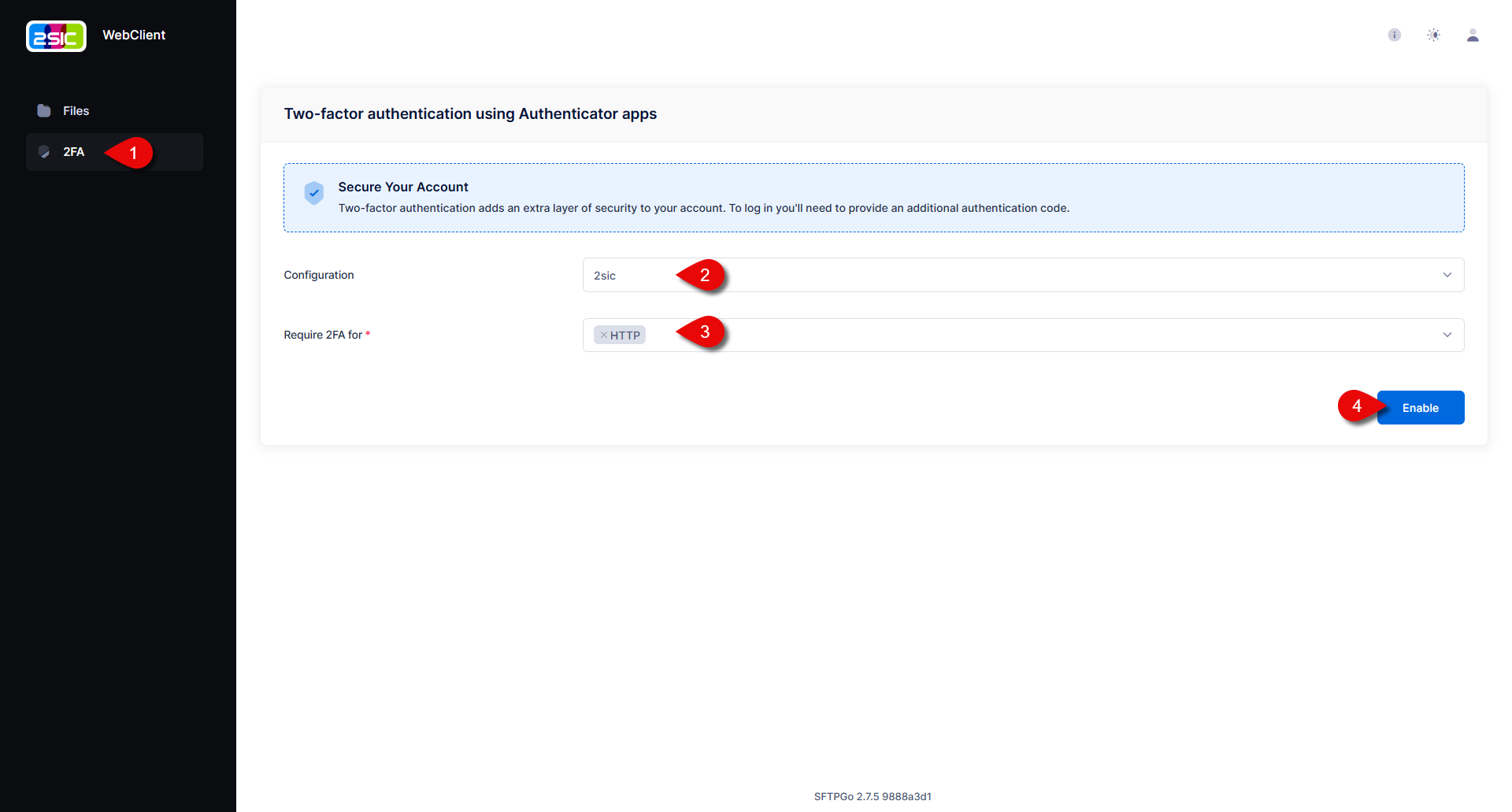
  1. Öffnen Sie die 2FA-Einstellungen.
    1. Wechseln Sie zum Reiter 2FA.
    2. Wählen Sie die Konfiguration für 2sic.
    3. Aktivieren Sie 2FA für HTTP.
    4. Bestätigen Sie mit "Enable".

Nach der Aktivierung werden ein QR-Code und ein Einrichtungsschlüssel angezeigt.

2FA einrichten

  1. Fügen Sie den Einrichtungsschlüssel in einen Passwort-Manager mit TOTP-Unterstützung ein oder scannen Sie den QR-Code mit einer Authenticator-App.
  2. Öffnen Sie den erzeugten Eintrag und übernehmen Sie den sechsstelligen Bestätigungscode.
  3. Geben Sie den Bestätigungscode im WebClient ein.
  4. Bestätigen Sie die Einrichtung.
Logo
Legal | Content Copyright CC-BY 4.0
bug_reportReport Bug
  • info
  • Links
  • Permissions
code Share
code
URL copied to clipboard.
Embed Checklist close
Copy Copy
Content Copyright

CC-BY 4.0

Translations

None

2sic internet solutions Logo

2sic internet solutions

QR-Code
azing.org/2sic/r/wuJVdKMQ
View & Use

Public (can be used by everybody)

Edit & Admin

Professional (only select users)

Here you can see how this document is used and linked by other documents

Used (0)

Others referencing this

Uses these (0)

Documents linked from this document

How it Behaves

How this document is categorized changes how it behaves.

This is a main document, it is listed normally and appears in search result.

Type

This is a Checklist. Lists are converted into checkboxes.

Get something to say?

Comment to start a discussion or make a note
send

please log on to chat

close

Durchsuche ganz Azing